

FinologeeDRIVE (WebDAV)
Connect your ERP system to FinologeeBKO using a locally mounted folder to automate payment uploads and bank statement retrieval.
Introduction
FinologeeDRIVE provides a file-based integration between FinologeeBKO and ERP systems through a locally mounted network folder using the WebDAV protocol. Instead of building a direct API connection, your ERP communicates with FinologeeBKO by reading and writing files to a shared drive — a method natively supported by ERP systems such as Bob50, Sage100, and SAP.
The integration supports automated workflows for uploading outgoing payment files and SEPA Direct Debit instruction files from your ERP to FinologeeBKO, and for retrieving bank statements from FinologeeBKO into your ERP for reconciliation.
Prerequisites
FinologeeDRIVE requires activation by the Finologee support team before it can be used. Contact [email protected] to request setup, confirm your technical user credentials, and configure the required payment category.
Permissions
| Permission | Description |
|---|---|
FinologeeBKO WebDAV | Technical role required for WebDAV integration. Assigned to the dedicated technical user that mounts and accesses the drive. |
Feature flags
Feature flag requiredFinologeeDRIVE requires the
WEBDAVfeature flag to be enabled on your tenant, along with a configuredpaymentCategoryId. Contact [email protected] to enable this feature. For more information on feature flags, see Feature Flags.
FinologeeDRIVE overview
Once mounted, FinologeeDRIVE appears as a standard network drive on your local computer or server. It exposes the following folders:
| Folder | Direction | Purpose |
|---|---|---|
/payments | ERP → FinologeeBKO | Drop pain.001 payment files here to create payments in FinologeeBKO |
/statements | FinologeeBKO → ERP | Retrieve camt.053 bank statements delivered by FinologeeBKO |
/invoices/outgoing | ERP → FinologeeBKO | Drop UBL XML e-invoice files here to send invoices through the Peppol network |
/invoices/incoming | FinologeeBKO → ERP | Retrieve received e-invoices delivered from the Peppol network |
The /invoices folder structure is only present when the INVOICES feature flag is enabled for your tenant. Outgoing invoice files are sorted into archive, error, and success subfolders after processing. Received incoming invoices are stored in an archive subfolder.
Your ERP system reads and writes to these folders as part of its normal file-based workflow, with no custom API development required.
Setting up FinologeeDRIVE
FinologeeDRIVE is supported on Windows 10, Windows 11, and Windows Server 2012 R2 and later. The sections below cover mounting on a local computer and on Windows Server, along with troubleshooting guidance and instructions for removing the mapping.
On a local computer
Recommended method: command line
Open PowerShell and run the following command, replacing <tenant> with your tenant name and Z: with any available drive letter:
net use Z: '\\<tenant>.bko.finologee.com@SSL@443\drive' /savecred /persistent:yesWindows will prompt for your technical user credentials once. After that, the credentials are saved and the drive reconnects automatically on every login. Contact [email protected] to confirm your technical user credentials.
Use the UNC path, not an https:// URLThe Windows WebDAV redirector only accepts the
\\server@SSL@port\shareform withnet use. Usinghttps://<tenant>.bko.finologee.com/driveproduces errors 59 or 1244 regardless of whether the credentials are correct.
Do not mix /savecred with inline credentialsDo not add
/user:or an inline password when using/savecred— mixing them triggers a conflicting switches error. Let Windows prompt you for credentials instead.
If you need to run the mapping unattended in a script where an interactive prompt is not possible, supply the credentials inline using single quotes:
net use Z: '\\<tenant>.bko.finologee.com@SSL@443\drive' 'yourpassword' /user:'yourusername' /persistent:yes
Password quoting in PowerShellSingle quotes are required when passing the password inline. PowerShell expands certain characters (such as
!and$) inside double-quoted strings, which corrupts the password before it reachesnet use.
Once connected, open File Explorer and navigate to the drive letter you chose. You should see the /statements and /payments folders.
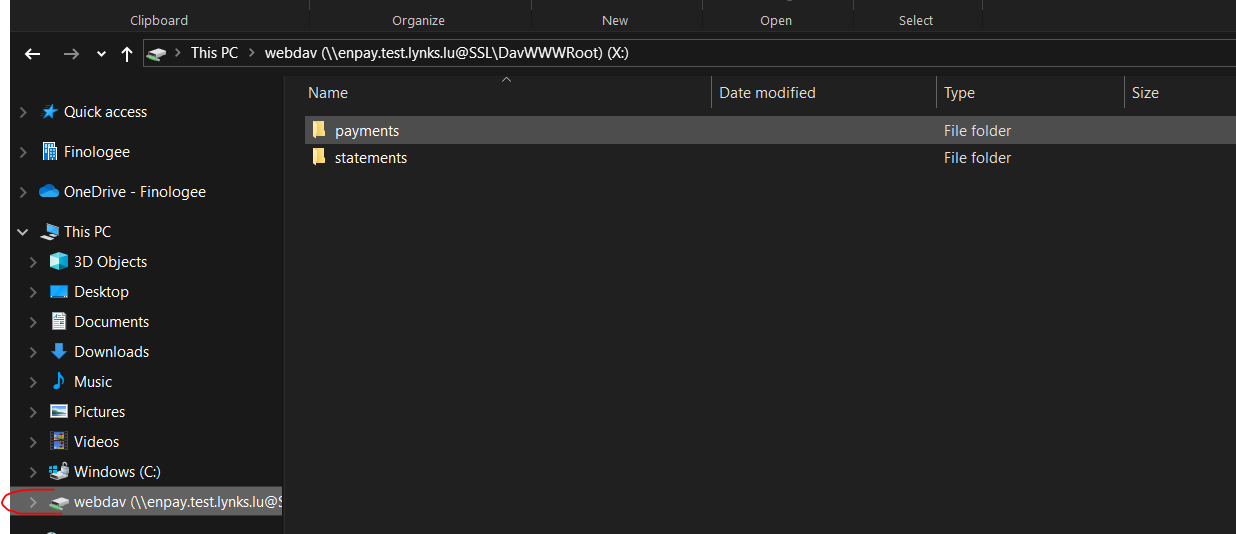
FinologeeDRIVE mounted with statements and payments folders visible
Drive visibilityIt may take a few minutes for the drive to appear after mounting. If the drive does not appear, wait briefly and refresh Windows Explorer.
Switching credentialsTo connect with a different technical user, unmount the drive, restart your computer, and repeat the setup steps using the new credentials.
Alternative: Windows Explorer
You can also map the drive through the graphical interface, but this method is more prone to dropping credentials after a restart.
- In Windows Explorer, right-click This PC and select Map network drive.
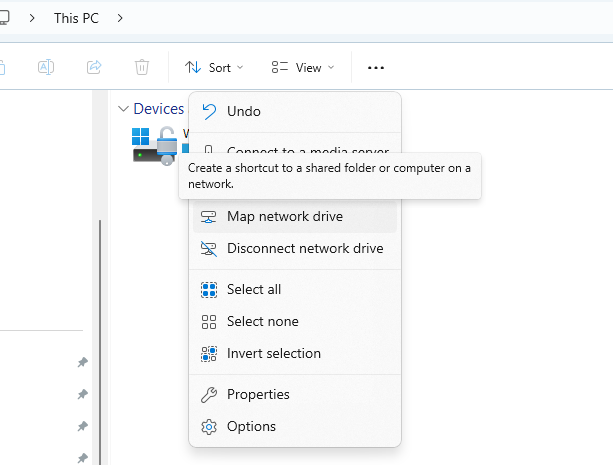
Map network drive option in Windows Explorer context menu
- Choose a drive letter.
- In the Folder field, enter:
\\<tenant>.bko.finologee.com@SSL@443\drive - Check Reconnect at sign-in.
- Check Connect using different credentials, then click Finish.
- When prompted, enter the username and password for your technical user. Tick "Remember my credentials" — if you skip this step, Windows will prompt for a password again after the next restart.
Credential persistenceIf "Remember my credentials" is not ticked at sign-in, the credentials are stored only for the current session and the drive will prompt for a password again after the next restart. The command-line method above avoids this problem entirely.
Required Windows setting: WebClient service
Before the drive mapping works reliably across restarts, verify that the WebClient service is set to start automatically. The Windows default of Manual (Trigger Start) means Windows attempts to reconnect persistent drive mappings at login before the service has started, causing the drive to appear disconnected until you open it manually.
Open PowerShell as Administrator and run:
Set-Service WebClient -StartupType Automatic
Start-Service WebClient
To verify:
Get-Service WebClient | Select-Object Status, StartTypeYou should see Running and Automatic.
GUI alternativeOpen Services (
Win + R, typeservices.msc), find WebClient, set Startup type to Automatic, click Start, then OK.
On a Windows Server
Unlike Windows 10/11, Windows Server does not ship with the WebDAV client installed and has an additional credential-forwarding restriction that prevents authentication for internet-hosted servers. Complete the three steps below before mounting FinologeeDRIVE.
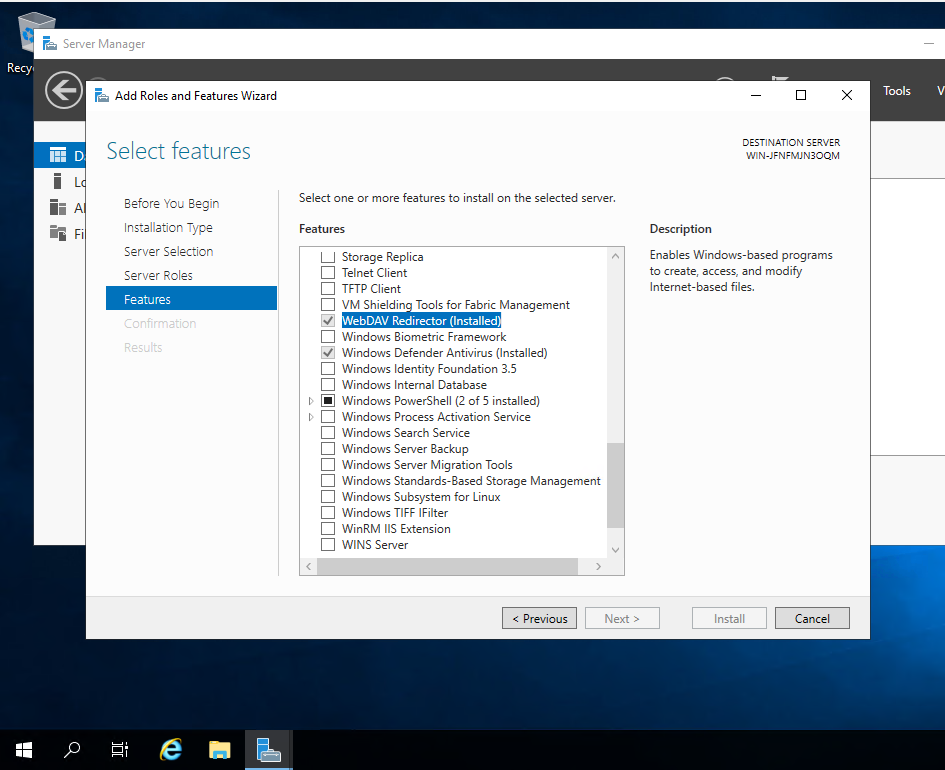
WebDAV Redirector feature in Windows Server roles and features
Step 1 — Install the WebDAV redirector
Check whether the feature is already installed:
Get-WindowsFeature WebDAV-RedirectorIf InstallState is not Installed, install it. A reboot is mandatory — the package registers a service and a kernel-mode driver that are not active until restart.
Windows Server 2016 / 2019 / 2022 / 2025:
Install-WindowsFeature WebDAV-Redirector -RestartWindows Server 2012 R2 and earlier (the WebDAV-Redirector feature is not available on these versions — install Desktop Experience instead):
Install-WindowsFeature Desktop-Experience -RestartStep 2 — Set services to Automatic
After reboot, the WebClient and MRxDAV services are left at Manual (Trigger Start), which causes the same login-time reconnect problem as on desktop Windows. Fix this before mapping the drive:
@('WebClient','MRxDAV') | ForEach-Object { Set-Service $_ -StartupType Automatic }
Start-Service WebClient
Step 3 — Allow credential forwarding
On Windows Server, the WebDAV redirector uses WinHTTP instead of WinInet. WinHTTP only forwards credentials to intranet sites. Because <tenant>.bko.finologee.com is an internet FQDN, credentials are silently dropped and every request arrives unauthenticated — producing System error 1244, even when the correct password is supplied.
Add the server domain to AuthForwardServerList so WinHTTP is allowed to forward credentials:
Set-ItemProperty `
  -Path 'HKLM:\SYSTEM\CurrentControlSet\Services\WebClient\Parameters' `
  -Name AuthForwardServerList `
  -Value @('*.bko.finologee.com') `
  -Type MultiString

Restart-Service WebClient
Once all three steps are complete, map the drive using the command-line method in the section above.
Troubleshooting
| Symptom | Likely cause | Fix |
|---|---|---|
| Password prompt appears after every restart | Credentials not saved to Credential Manager | Use net use with /savecred /persistent:yes and let Windows prompt you, or supply the password inline with single quotes |
A command was used with conflicting switches | /savecred was combined with /user: or an inline password | Use /savecred /persistent:yes with no inline credentials, or drop /savecred and supply credentials inline with single quotes |
| Drive letter shows as disconnected on login | WebClient service is Manual (Trigger Start) — Windows reconnects drives before the trigger fires | Set-Service WebClient -StartupType Automatic; Start-Service WebClient |
| System error 67 — The network name cannot be found (Windows Server) | WebDAV redirector not installed | Install-WindowsFeature WebDAV-Redirector -Restart |
| System error 1790 — The network logon failed (Windows Server) | WebDAV redirector not installed, or WebClient service not running | Install WebDAV-Redirector feature and set WebClient to Automatic |
| System error 59 — An unexpected network error | Wrong URL format: https:// does not work with net use | Use the UNC form: \\<tenant>.bko.finologee.com@SSL@443\drive |
| System error 1244 — User has not been authenticated (Windows Server) | WinHTTP silently drops credentials for non-intranet FQDNs | Set AuthForwardServerList to *.bko.finologee.com in WebClient\Parameters and restart the service |
| Connection is slow or times out | Network or server load | Contact your administrator or [email protected] |
Removing the drive mapping
To disconnect and remove the drive permanently:
net use Z: /deleteTo also remove the stored credentials from Windows Credential Manager:
cmdkey /delete:<tenant>.bko.finologee.comPayment creation
To create payments in FinologeeBKO from your ERP, drop a pain.001 file into the /payments folder on the mounted drive.
- Both single credit transfers and batch payments (including batch bookings) are supported.
- Once the file is dropped, FinologeeBKO processes it and creates the corresponding payment, which then appears in the FinologeeBKO UI.
- Successfully processed files are moved to a
/payments/successsubfolder automatically.
Payment folder structure showing success, error, and archive subfolders
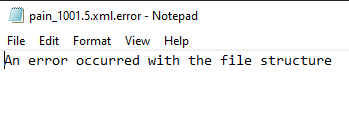
If a file cannot be processed, both the original file and an error file with the reason for failure are placed in the /payments/error subfolder.
Automatic archivingFiles older than a configured number of days are automatically moved to an
/archivefolder. The retention period is set by the Customer Success team and cannot be changed by users. Manual archiving is not supported.
For more information about credit transfers and batch payment formats, see Outgoing Payments.
SEPA Direct Debit collectionsFinologeeDRIVE also supports uploading pain.008 files to create SEPA Direct Debit collections, applying the same validation rules as other direct debit creation methods. Direct debit files use their own folder rather than the payment folder, with success, error, and archive subfolders that mirror the payment structure. This workflow is available to tenants with the
SEPA_DIRECT_DEBITfeature enabled. For details on SDD file requirements and validation, see Direct Debits - SEPA Direct Debit collection monitoring and creation.
Statement handling
FinologeeBKO delivers bank statements to the /statements folder on the mounted drive as soon as they are received from the bank.
| Property | Detail |
|---|---|
| Format | camt.053 (enriched for compatibility with Bob50) |
| Trigger | Statements are added as soon as FinologeeBKO receives them from the bank |
| Intra-day statements | Available via FinologeeDRIVE, delivered in camt.053 format |
Your ERP can read these files directly from the /statements folder as part of its standard import workflow.
For more information about bank statement formats and downloads, see Reports.
Technical specifications
Supported file formats
| Format | Direction | Description |
|---|---|---|
| pain.001 | Upload (ERP → FinologeeBKO) | ISO 20022 payment initiation file for credit transfers and batch payments |
| pain.008 | Upload (ERP → FinologeeBKO) | ISO 20022 SEPA Direct Debit instruction file for creating direct debit collections |
| camt.053 | Download (FinologeeBKO → ERP) | ISO 20022 bank-to-customer statement, enriched for Bob50 compatibility |
Supported ERP systems
FinologeeDRIVE is designed for ERP systems that natively support file-based bank integration, including:
- Bob50
- Sage100
- SAP
Other ERP systems that support WebDAV or file-based payment and statement workflows may also be compatible. Contact [email protected] to discuss compatibility with your system.
Best practices
Follow these recommendations for a reliable FinologeeDRIVE integration:
- Use a dedicated technical user — Mount the drive with a dedicated
FinologeeBKO WebDAVtechnical user rather than a personal account, to ensure uninterrupted access independent of individual user changes. - Validate pain.001 files before upload — Ensure your ERP generates valid, SEPA-compliant pain.001 files. Check the
/errorsubfolder regularly to catch and resolve processing failures. - Monitor the
/errorsubfolder — Set up a monitoring process on your ERP or server side to alert your team when files appear in/error. - Do not manually move files — Avoid manually reorganizing files within the drive folders, as FinologeeBKO manages file lifecycle (success, error, archive) automatically.
- Plan for archiving — Design your ERP import workflows to process statement files promptly, before automatic archiving moves them.
- Test in a sandbox environment — Before going live, validate the full payment and statement cycle in a FinologeeBKO sandbox tenant.
Related documentation
Explore related sections to deepen your understanding:
Core Concepts
- Feature flags - Enable and configure optional FinologeeBKO features
- Permissions - Roles and access control
Platform Features
- Outgoing payments - Credit transfers and batch payments
- Direct debits - SEPA Direct Debit collection monitoring and creation
- Reports - Bank statements and file formats
- Payment categories - Configure categories for WebDAV payments
Support
For assistance with FinologeeDRIVE setup, credential configuration, or troubleshooting, contact the Finologee support team at [email protected].
Updated about 13 hours ago